

Introduction
The Estimated Delivery Date Pro module gives you the ability to let your customers know when they can expect delivery for their order and also encourage them to place their order within a time window for earliest delivery.
Installation
The installation procedure is very much similar to most other Prestashop modules. No core changes required therefore installation is straight forward, be sure to follow the instructions below to ensure a successful installation.
- Upload the module folder to your stores
{root}/modulesfolder - Once uploaded, login to your Prestashop Back Office and head over to the Modules section
- Search for the module and click Install
- After a successful installation, the module configuration screen is presented to you. More details on this in the next section.
Configuration
Navigate to the Modules Manager in the back office and locate the module and open up the module configuration:

After opening the module configuration you should see two tabs, namely General and Rules.
General Tab
Set up the general module configuration here, you have the following configuration options:
Display On Product Page?
Whether or not the estimated delivery date widget should be displayed on individual product pages.
Display On Category Pages?
Whether or not the estimated delivery date widget should be displayed for products on the category pages.
Display In Cart?
Whether or not the estimated delivery date widget should be displayed in the cart (just below the cart)
Display For individual products in the cart?
If enabled, the widget will be displayed for each product ion the cart. This is useful if different products in your store have varying delivery schedules.
Display for each carrier in the checkout?
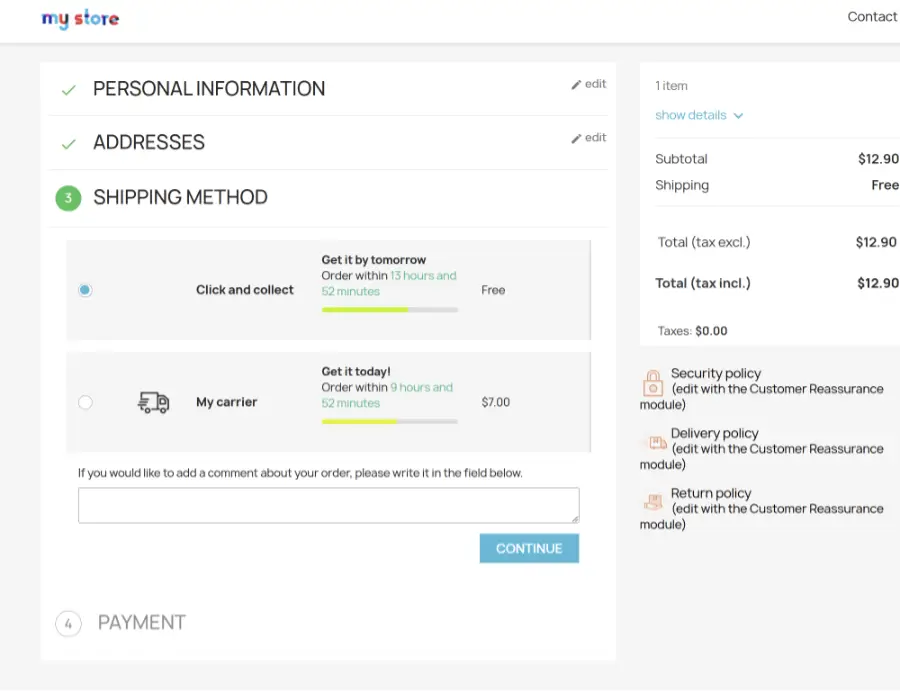
This will provide an estimated delivery date for each carrier listed during the shipping step in checkout.
Display timers?
When enabled, a timer will be displayed informing the user how how much time they have left to place their order the order to be delivered by the estimated delivery date displayed.
Rules Tab
The rules tab allows you to create delivery schedules which will be used to determine the estimated delivery dates for orders. You can create different delivery schedules for different carriers or even products / categories or suppliers.
Lets take a look at creating a new rule.
Click the create rule button and the a form should popup with the following options:
Name
A name to help you identify the rule you are creating.
Rule Scope
You can choose from the following possible options:
Carrier – The rule will be applied to specific carriers in your store
Categories – The rule will apply to selected carriers and categories in your store.
Suppliers – The rule will apply to selected carriers and suppliers in your store.
Products – The rule will apply to selected carriers and products in your store.
After creating the rule, edit the rule to expand the rule configuration. You should see the following tabs: Options, Schedule, Weekdays, Specific Dates.
Options Tab
Under the Options tab you will see the following form presented to you, depending on the scope you selected.

Select the carriers the rule applies to, along with categories / suppliers or products depending on the rule scope you selected for this rule.
Schedule Tab
The schedule tab allows you to define the estimated delivery date relative to the current date and time. You should see the form below

Lets take a look at the various options in the form above:
Min Days
The number of days from the current day for the delivery to take place. For example, setting it to 0 would mean the estimated delivery date displayed would be for the current day. Setting it to 1 would be tomorrow and so forth.
Max Days
This setting is useful if you want to to give the customer a date window for the estimated delivery date. For example between 21st December and 24th December.
Set this to 0 to disable the second date. Otherwise enter any other value above zero, the value works in the same way the Min days setting works.
Cut Off Time Enabled?
If you have a cut off time after which the estimated delivery date rolls over to the next available day then you can set it here. Enable this option and set the cutoff time hours and minutes. This setting is also quite useful if you want to display a timer along with the estimated delivery date encouraging the customer to place the order as early as possible for the quickest delivery.
Min Days after cut off time
You can adjust the min days for delivery once the cut off time has passed using this setting.
Weekdays Tab
The weekdays tab allows you to set which days of the week deliveries can take place and further more, adjust the min / max days and cut off times based on the day of the week. This allows you to create more flexible delivery schedules and give your customers a more accurate idea of when they can expect their delivery.
The scenario is useful, for example, orders being placed during the week before 14:00 can expect next day delivery, except for orders placed on Friday and Saturday which can expect delivery on the following Monday and orders placed on Sunday can expect delivery the following Tuesday.
This is just an example of the kind of flexible delivery schedules you can create.
Specific Dates Tab
This is similar to weekday settings, but instead for days of the weeks, you can create date ranges which would influence delivery schedules for orders being placed within those date periods. This tan is useful for setting up delivery schedules for holiday periods.
After setting up the rule and schedule, you should see the estimated delivery date widget on the store front.
Store Front
Below are a few examples of the estimated delivery date widgets appearing in the store front, as the customer would see them.
On the product pages:

On the product page with count down timer enabled:
Category pages:


In the cart:

You can also configure the module to display the estimated delivery date in the cart for individual cart items:

During checkout:
This concludes the user guide for the Estimated Delivery Date module for Prestashop.